- Home
- Knowledge base
- Inviting someone to ResoField
Inviting someone to ResoField
Invite someone to use ResoField too. Read what the other person gets, and how they can then share their data with you.
Open Account with the gear at the top and choose Invite on the left. Enter the email address of someone who would like to use ResoField too and press Send invitation.
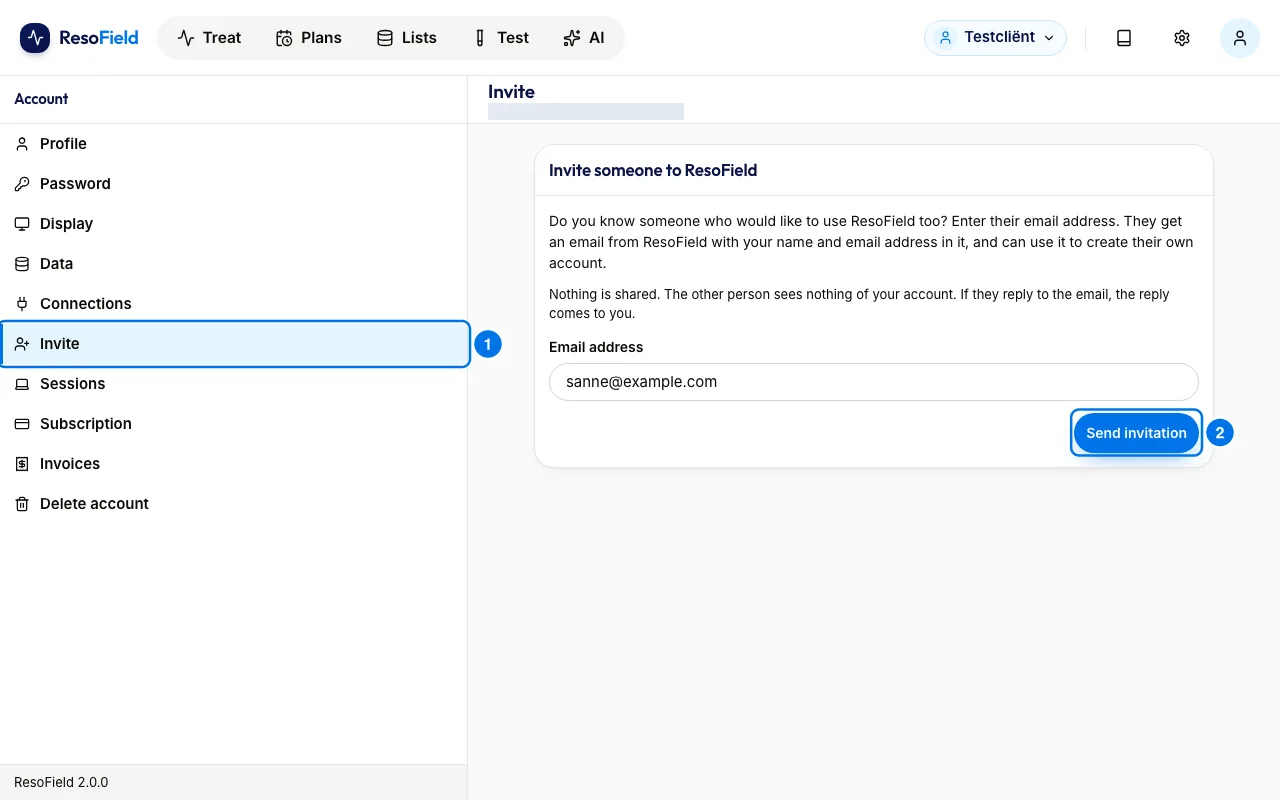
The other person gets an email from ResoField with your name and email address in it. The button in that email lets them create their own account. Nothing is shared: they see nothing of your account. If they reply to the email, the reply comes to you.
The same address gets at most 1 invitation from you every 30 days. In 24 hours you can send at most 50, and at most 10 in the first week of a new account. You can only invite once your own email address is confirmed.
If the other person creates an account with that address, a bar with your name appears at the top after they sign in. View explains how they can share their data with you, for example so you can make a plan for them.
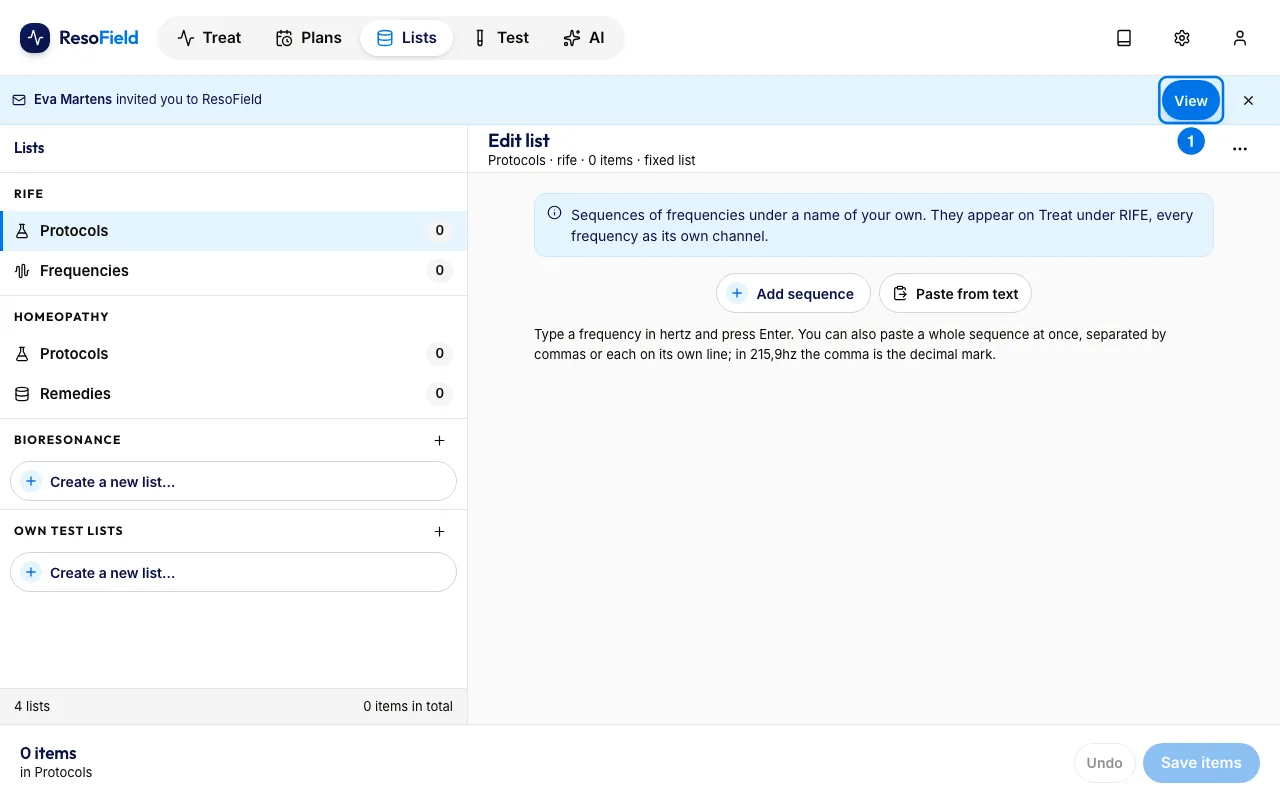
If they want that, they choose Choose myself, or Add myself if they are not a client in ResoField yet. They then share that client with you. Your address is already filled in and they confirm with their own password. You get an email and accept the share.
If they don’t want it, they choose No, thanks and the question does not come back. Sharing is always possible later, under Clients. They stay in charge: you cannot change their name or date of birth, you see nothing else of their account, and they can stop sharing at any time.
Questions and answers
Does someone I invite see my clients?
No. An invitation shares nothing. Only if the other person shares a client with you themselves can you work with that one client.